

Team coach getting started
Team coaches get a daily pulse on culture — who checked in, who needs follow-up, and how the team is trending on character. Setup includes a short Pathway review on purpose: athlete data stays protected until your coach profile is verified.
Who this is for
Section titled “Who this is for”School or club coaches who will manage rosters, review check-ins, send shoutouts, and customize team pillars in AthleteIQ.
What you’ll need
Section titled “What you’ll need”- An onboarding invite from Pathway or your school/club program lead
- A Pathway account (create one when prompted, or sign in if you already have one)
- Your school name and the sport(s) you coach
-
Start coach setup
Open the invite/link from Pathway or your program. Sign in or create your Pathway account on the platform website when prompted, then finish coach setup in AthleteIQ.
-
Choose Team Coach
Select Team Coach (club or school team coach) — not College Coach.
-
Submit your profile
Field Required? What to enter School Yes Search and select your school Sports Yes One or more sports you coach Click Submit for review.
-
Wait while Pathway reviews
You’ll see that your application is pending. You can’t use coach tools or see athlete data yet — that’s normal.
Tip: During launch week, ask your program lead to let Pathway know when coaches have submitted so reviews stay quick.
-
Open AthleteIQ when you’re approved
After Pathway approves your profile, open AthleteIQ and enter your coach dashboard.
-
Create your team
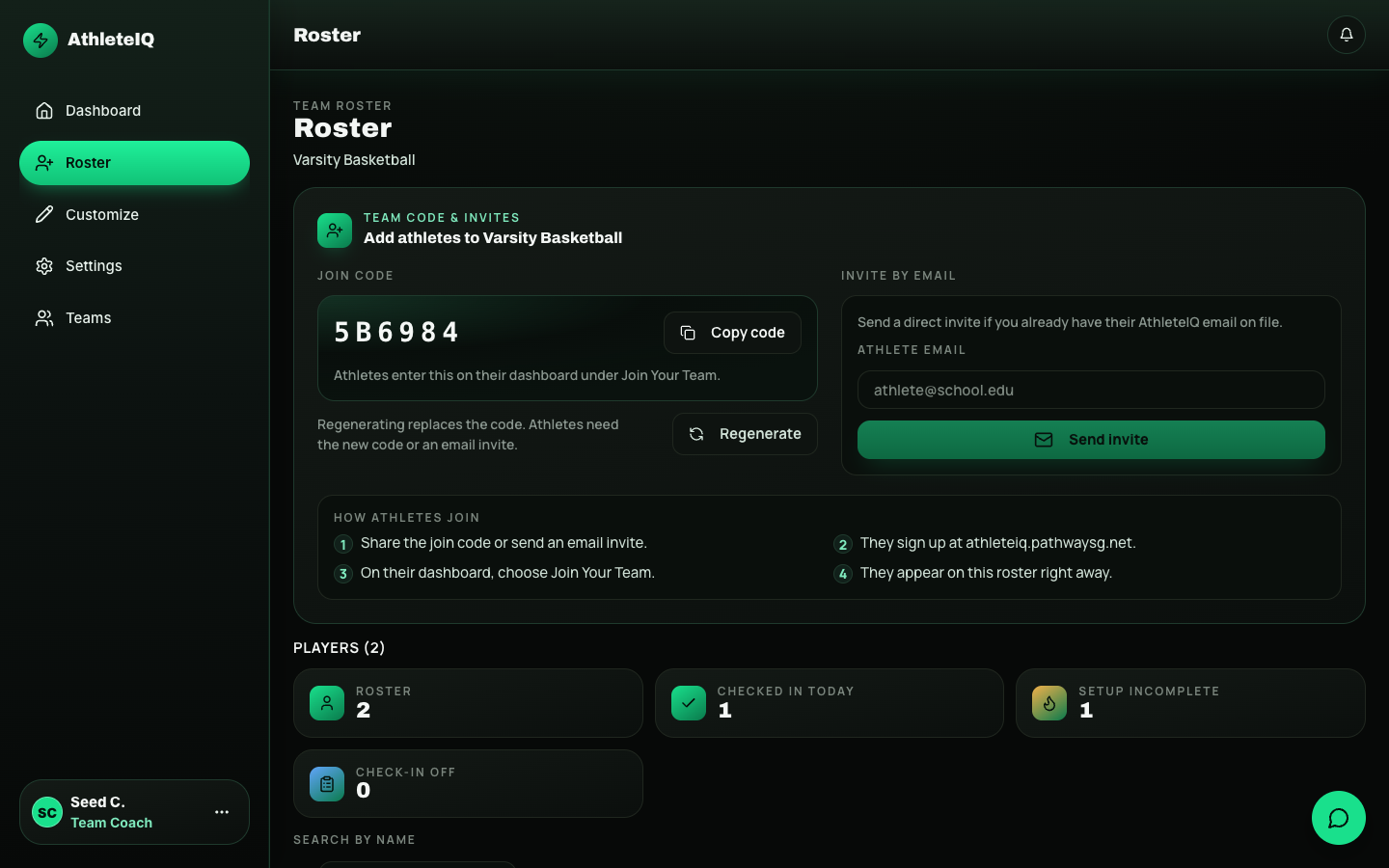
Set team name, sport, and age group (Youth, Middle School, High School, or College). You’ll receive a 6-character invite code right away.
-
Invite athletes
Share the invite code, or send email invites from Roster. Athletes enter the code on Join Team.
-
Start coaching
- Watch check-in status and follow-up actions on the dashboard
- Send shoutouts
- Run evaluations
- Customize pillars under Customize
- Manage roster and teams
Quick reference
Section titled “Quick reference”| Step | Action | Result |
|---|---|---|
| 1–3 | Onboard + submit profile | Waiting for Pathway review |
| 4–5 | Approved | Coach dashboard unlocks |
| 6–7 | Create team + invite | Roster starts filling |
| 8 | Daily coaching tools | Full coach experience |
If you’re not approved
Section titled “If you’re not approved”You’ll see that your application wasn’t approved. Contact Pathway through Feedback & support or your program lead if you think that was a mistake.
Common questions
Section titled “Common questions”I signed up on the main website and I’m stuck as athlete/parent.
You need the coach onboarding path. Public sign-up does not grant coach access.
I’m approved but I don’t see athletes.
Create a team first, then share the invite code. Athletes must join before they appear.
Can I coach multiple teams?
Yes. Use Teams to create or switch. Each team has its own invite code and roster.
How long does review take?
Pathway reviews coach profiles carefully. During Beta launch, your program lead can help keep things moving.