

College coach getting started
College coaches use AthleteIQ to see character over time — not just film from one camp. Setup follows the same trusted review path as team coaches, then lands you in recruiting tools (not team roster tools).
Who this is for
Section titled “Who this is for”College recruiting staff who need prospect browsing, shortlists, transfer portal views, and messaging when available.
What you’ll need
Section titled “What you’ll need”- A coach onboarding invite from Pathway or your staff lead (not the public Athlete/Parent signup)
- A Pathway account (create one during the invite flow if you don’t have one)
- Your institution, sport, and job title ready to submit
Before you start
Section titled “Before you start”- Public AthleteIQ onboarding shows Athlete and Parent — that is correct. College coaches do not use that path.
- You’ll wait on a pending screen after you submit. That’s Pathway reviewing your profile so athletes stay protected.
- After approval you open AthleteIQ and land on recruiting tools — not a team invite-code flow.
-
Start college coach onboarding
Open your invite/link, create or sign in with your Pathway account, and continue into coach setup.
-
Choose College Coach
Select College Coach (“College recruiting staff”) — not Team Coach.
-
Submit your profile
Field Required? Example School Yes Your institution Sport Yes Your recruiting sport Title Yes Recruiting Coordinator, Assistant Coach Submit for review and wait on the pending screen. Ask your staff lead to tell Pathway you’ve submitted if you’re launching with a partner program.
-
Open AthleteIQ after Pathway approves your profile
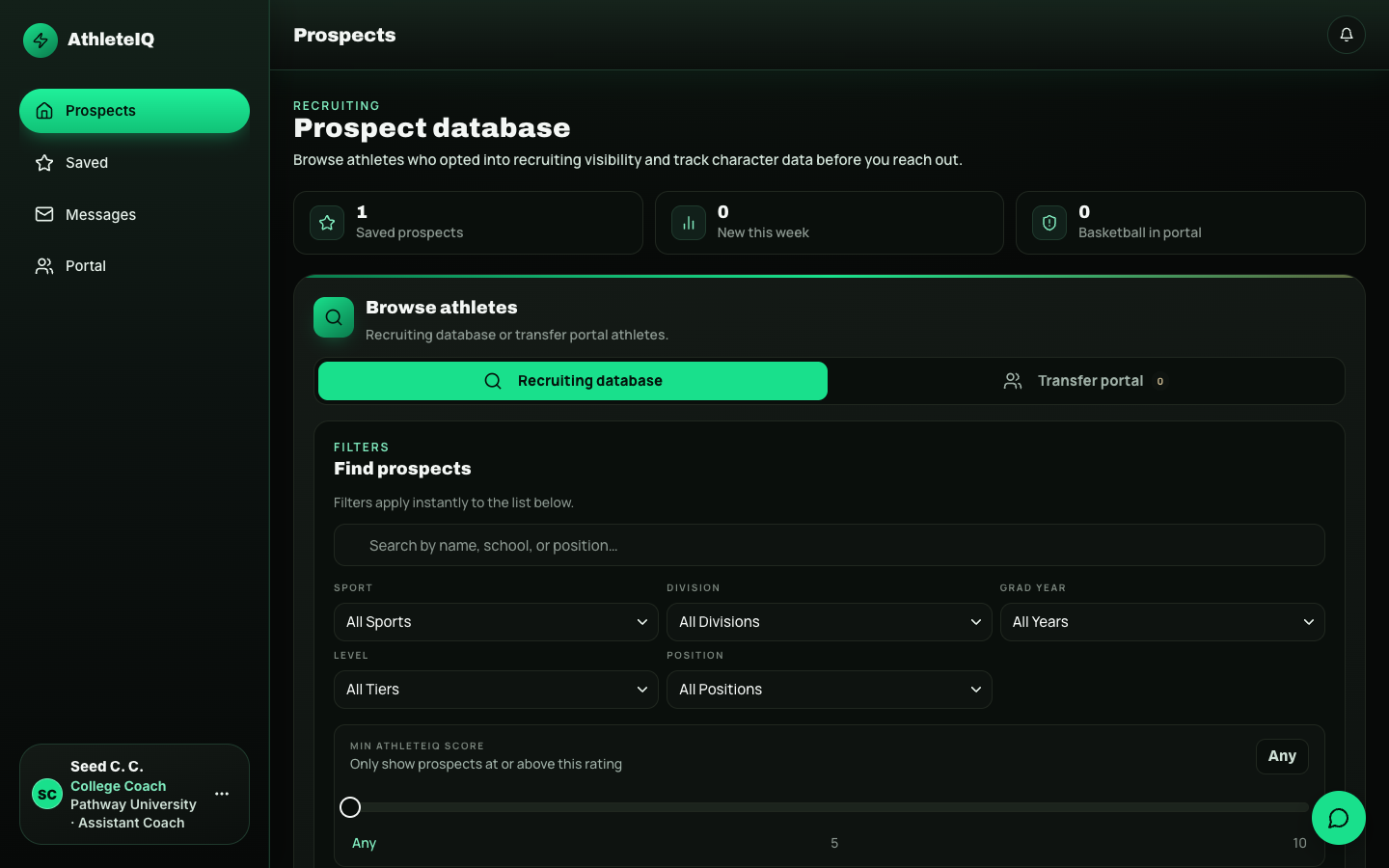
Once approved, open AthleteIQ. You should see the college coach experience (prospects — not team roster tools).
-
Start recruiting
Tool What it’s for Prospects Browse athletes who opted into recruiting visibility; filter by sport, grad year, position, and more Saved Create and manage named shortlists Portal Review athletes who flagged transfer-portal status Athlete profile AthleteIQ score, pillars, streak, check-in history; express interest; message athlete or parent when available
College coach vs team coach
Section titled “College coach vs team coach”| Team coach | College coach | |
|---|---|---|
| How you get in | Coach invite path | Same invite path |
| Profile form | School + sports | School + sport + title |
| After approval | Teams & rosters | Recruiting database |
| Primary tools | Check-ins, shoutouts, evaluations | Prospects, shortlists, portal, messaging |
| Relationship | Direct team coach | Recruiting interest |
What “done” looks like
Section titled “What “done” looks like”- Your profile is approved (not stuck on pending)
- AthleteIQ opens to recruiting tools
- You can open Prospects and apply at least one filter
- You’ve saved a shortlist or opened one athlete profile
- You understand empty results often mean athletes haven’t opted in yet
Common questions
Section titled “Common questions”I don’t see athletes.
Athletes must opt in to recruiting visibility. Try widening filters. If everyone is still missing, it’s usually opt-in — not a login bug.
Can I message anyone?
Messaging follows recruiting access rules. Athletes and families control visibility.
I chose Team Coach by mistake.
Use Feedback & support so Pathway can help correct your role. Don’t create a second account without asking.
I’m stuck on pending.
Ask your program lead to follow up with Pathway. You can also submit Feedback with your school, sport, and title.
Application not approved.
There’s no self-serve re-apply button. Contact Feedback or your program lead.
- For college coaches — deeper tour of prospects, shortlists, portal, and messaging
- Roles & access
- Troubleshooting