

Teams & roster
Why teams matter
Section titled “Why teams matter”In AthleteIQ, a team is what unlocks daily check-ins and progress trends for athletes. Coaches create the team and share access. Athletes join. The roster fills from there.
Until an athlete joins a team, they can still set goals — but check-ins stay locked.
For athletes — join a team
Section titled “For athletes — join a team”What you need
Section titled “What you need”- Your AthleteIQ account set up
- Either:
- A 6-character invite code from your coach, or
- An email invite your coach sent
Steps (invite code)
Section titled “Steps (invite code)”- Ask your coach for the team’s 6-character code (letters/numbers).
- Open AthleteIQ.
- Go to Join Team (from the getting-started prompt on home, or from navigation).
- Enter the code carefully (easy to mistype).
- Confirm.
- Check that the team name appears on home / My Team.
Steps (email invite)
Section titled “Steps (email invite)”- Open the invite email from your coach.
- Tap the link.
- Sign in to AthleteIQ if asked.
- Accept the invite.
- Confirm the team name shows in the app.
After you join
Section titled “After you join”- Daily check-ins unlock
- Progress trends become available
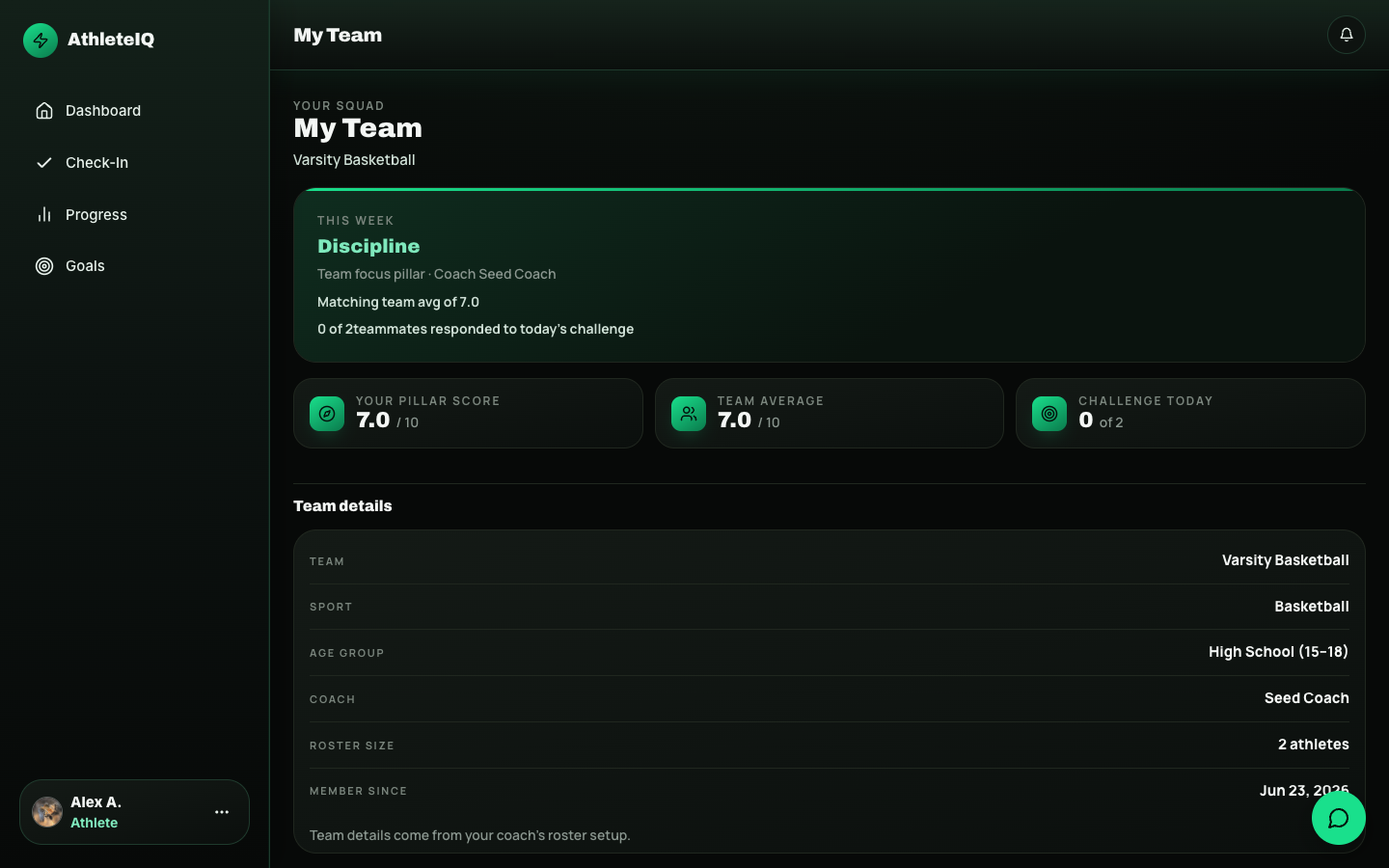
- My Team shows coach, teammates, and weekly focus
For coaches — create a team and fill the roster
Section titled “For coaches — create a team and fill the roster”Prerequisites
Section titled “Prerequisites”- Pathway has approved your coach profile (team coach getting started)
- You’re signed in to AthleteIQ as a team coach
Create your first team
Section titled “Create your first team”-
Open AthleteIQ coach experience.
-
When prompted (or from Teams), choose to create / set up a team.
-
Enter:
Field What to enter Team name e.g. “Varsity Basketball” Sport The sport for this roster Age group Youth, Middle School, High School, or College -
Save / create.
-
Copy the 6-character invite code shown for the team.
Invite athletes
Section titled “Invite athletes”Option A — share the code
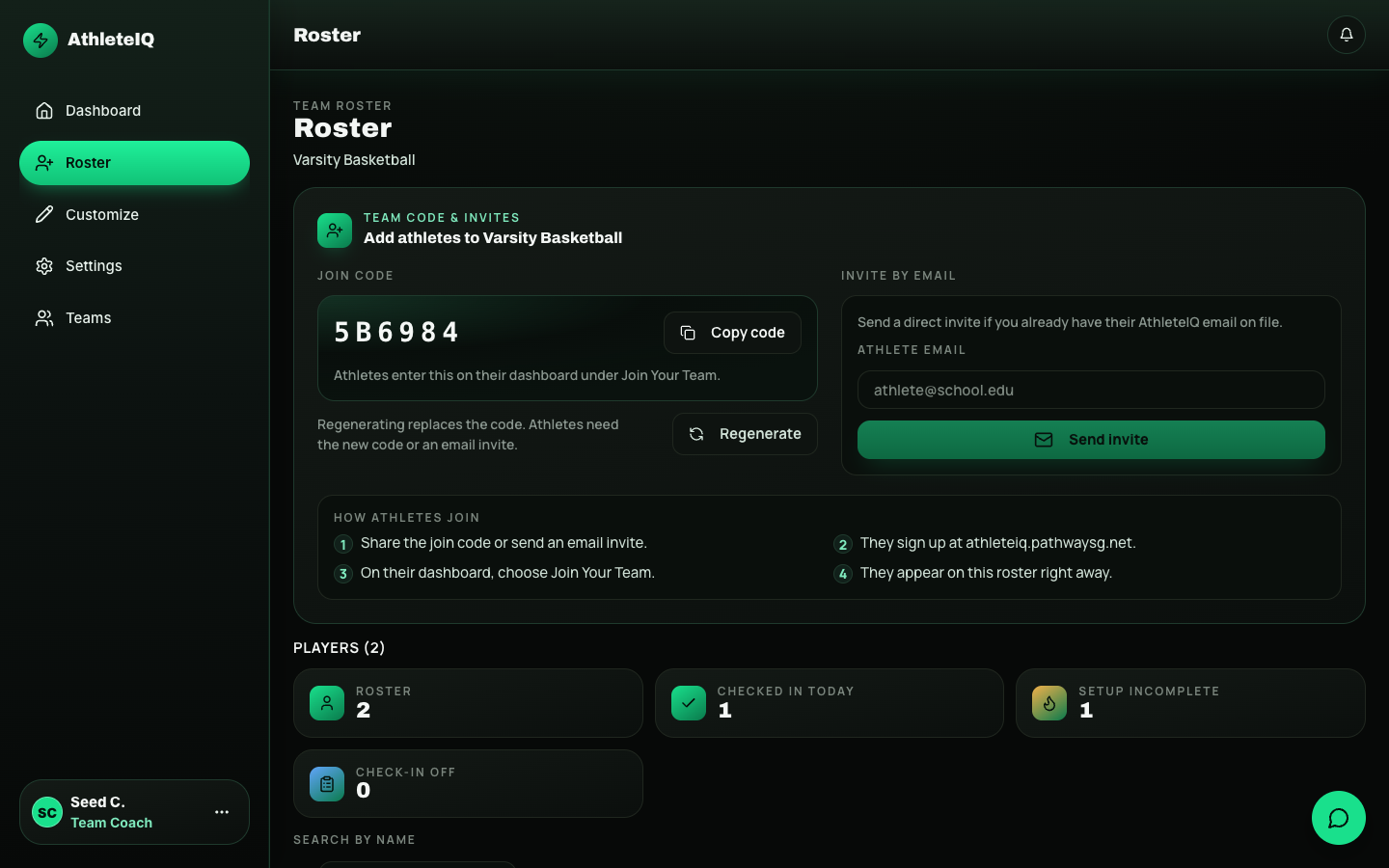
- Copy the invite code from Teams, Roster, or the dashboard compact code.
- Share it in your usual channels (team chat, email, handout).
- Tell athletes: open AthleteIQ → Join Team → enter code.
Option B — email invites from Roster
- Open Roster.
- Use the invite / add athlete flow.
- Send invites to athlete emails.
- Athletes accept from the email link.
Manage the roster
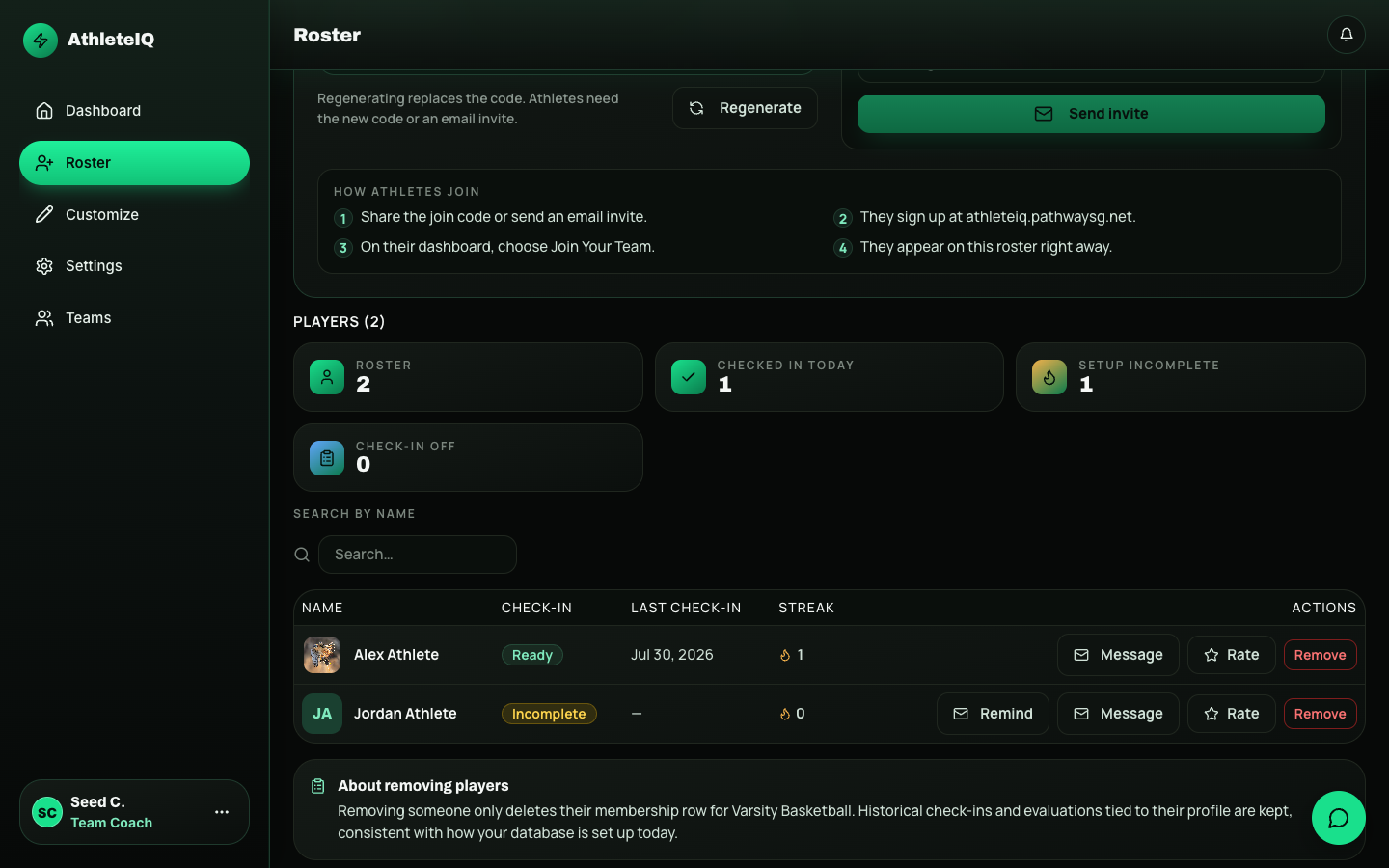
Section titled “Manage the roster”From Roster / Teams you can typically:
- See who has joined
- Reshare the invite code
- Send more email invites
- Open an athlete for detail (check-in status, scores, follow-ups)
- Switch teams if you coach more than one
Multiple teams
Section titled “Multiple teams”| Role | How it works |
|---|---|
| Coach | Create or switch teams under Teams. Each team has its own invite code and roster. |
| Athlete | Join the specific team whose code you were given. Ask your coach if you’re unsure which code is current. |
What success looks like
Section titled “What success looks like”Athletes: team name visible; check-in available; My Team populated.
Coaches: invite code in hand; roster starts filling within a few days of sharing; missed-check-in flags appear once athletes are active.
If something goes wrong
Section titled “If something goes wrong”| Issue | Who | What to try |
|---|---|---|
| Code doesn’t work | Athlete | Re-type carefully; ask coach for a fresh code; try email invite |
| Joined wrong team | Athlete | Contact coach / Feedback — don’t create duplicate accounts |
| No athletes on roster | Coach | Confirm code was shared; athletes must complete join after signup |
| Can’t create a team | Coach | Confirm your profile is approved; refresh; Feedback if still blocked |
| Multiple sports / ages | Coach | Create separate teams per roster you manage |