

For college coaches
What this experience is for
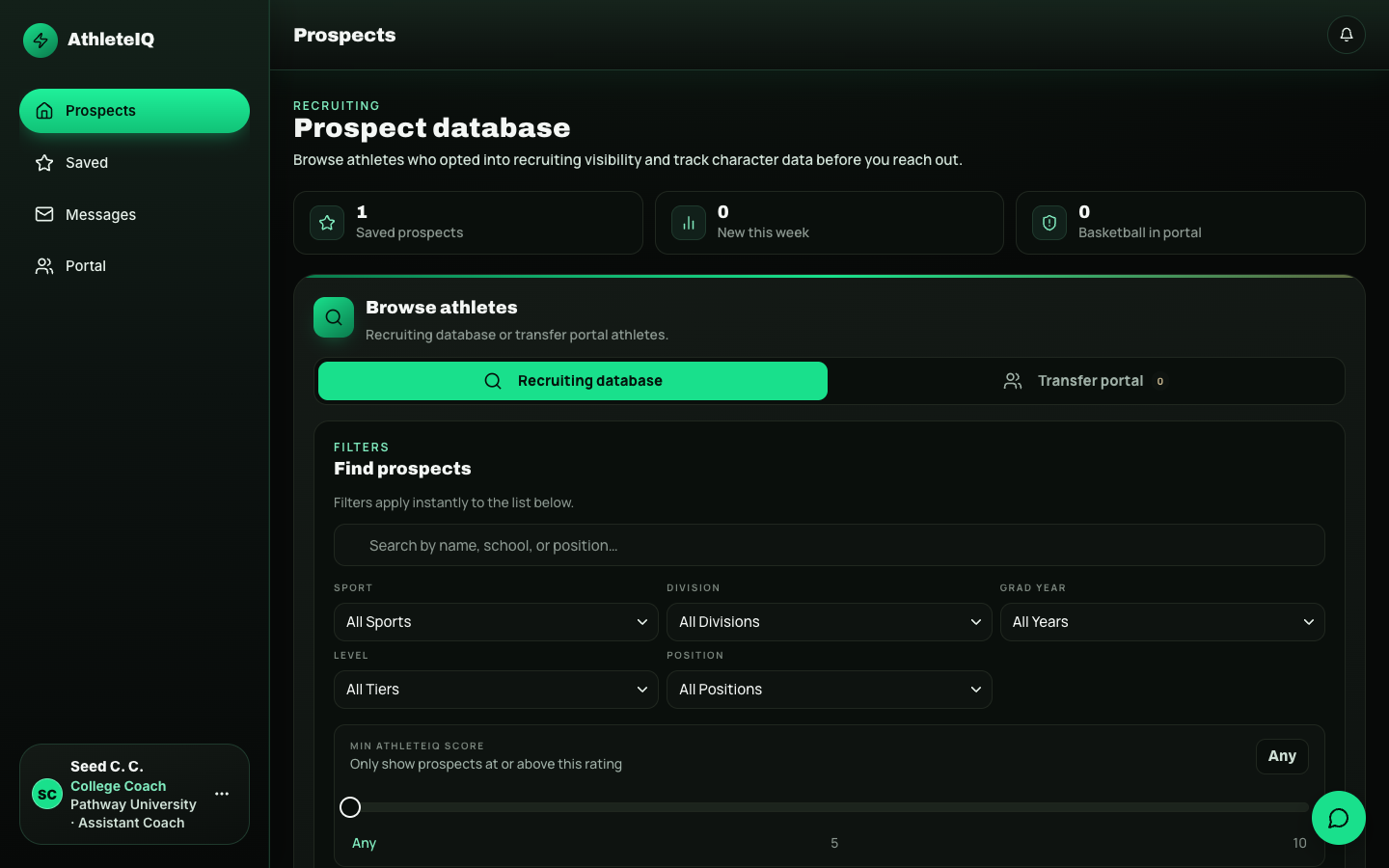
Section titled “What this experience is for”College coaches in AthleteIQ browse athletes who opted into recruiting visibility, save shortlists, review character history, and message when available. The point is character over time — not a one-day camp impression.
New to Pathway? Start with College coach getting started. This page is day-to-day recruiting after approval.
Prerequisites
Section titled “Prerequisites”- College coach profile submitted and approved by Pathway
- Signed in to AthleteIQ on the college coach experience (prospects — not team roster tools)
Main areas
Section titled “Main areas”| Area | What it’s for |
|---|---|
| Prospects | Browse and filter athletes who opted into visibility; save to shortlists; open Transfer Portal tab when relevant |
| Saved | Manage named shortlists (create, rename, delete); review saved cards |
| Portal | Dedicated transfer-portal browsing with similar filters |
| Athlete profile (recruiting view) | AthleteIQ score, pillars, streak, check-in count, insights; express interest; message athlete or parent when available |
| Messages | Recruiting messaging hub |
Browse Prospects — step by step
Section titled “Browse Prospects — step by step”- Open Prospects.
- Set filters that matter for your board (sport, graduation year, position, and other available filters).
- Open a prospect card / profile.
- Review character score, pillar breakdown, streak, and check-in history signals.
- Save to a named shortlist if you want to revisit.
- Express interest or message when those actions are available.
Shortlists (Saved)
Section titled “Shortlists (Saved)”- Open Saved.
- Create a list with a clear name (example: “2027 Guards — Priority”).
- Add prospects from Prospects / profile save actions.
- Rename or delete lists as your board changes.
- Review list members weekly so the board stays honest.
Transfer Portal
Section titled “Transfer Portal”- Open the Portal area (or Portal tab inside Prospects, depending on layout).
- Apply the same disciplined filters you use for Prospects.
- Save and message using the same habits as your main board.
How to read character data (recruiting lens)
Section titled “How to read character data (recruiting lens)”| Signal | How to use it |
|---|---|
| AthleteIQ score trend | Prefer multi-week patterns over a single spike |
| Adverse Recovery / Coachability | Useful before investing visit time |
| Streak / check-in count | Shows whether the habit is real |
| Insights | Hypotheses to validate in conversation — not final judgments |
Messaging norms
Section titled “Messaging norms”- Message about fit, questions, and next steps — keep it professional
- Remember parents may be in the loop when messaging is allowed to parents
- Don’t expect every athlete to respond instantly during school seasons
What success looks like
Section titled “What success looks like”- Filters return a workable board
- At least one shortlist exists with clear naming
- You can open a profile and explain the character story in two sentences
- You know when an athlete is missing because visibility is off — not because the product is “broken”
If something goes wrong
Section titled “If something goes wrong”| Issue | What to try |
|---|---|
| Empty Prospects | Filters too tight; or few athletes opted in yet during Beta |
| Can’t find a known athlete | They may have recruiting visibility off |
| Still pending approval | See College coach getting started; ask program lead / Feedback |
| Messaging unavailable | Permissions or athlete settings; try Feedback with the athlete context (no sensitive extras) |
Related reading
Section titled “Related reading”- College coach getting started
- Character pillars
- Messages, lessons & more (athlete-side recruiting visibility)
- Roles & access